ວິທີປ່ຽນຟອນຕົວໜັງສືໃນ windows 10 ໃຫ້ເປັນຟອນ Phetsarath OT
- ສາເຫດ ຟອນທີ່ມານຳ Windows ບໍ່ຖຶກຕາມຄວາມຕ້ອງການ
- ວິທີແກ້ ການຂຽນຄຳສັງ ຫຼື ຂຽນ Code
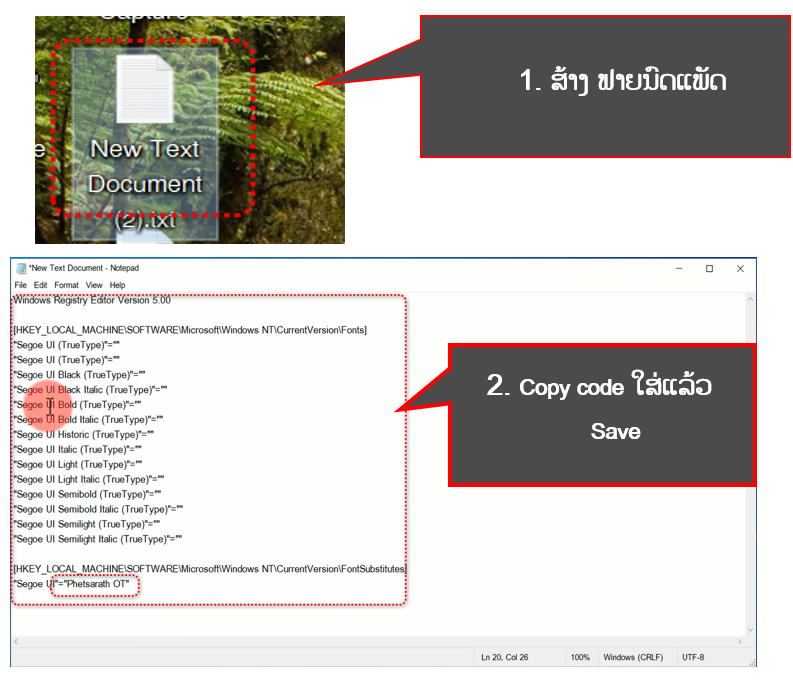
- Copy Code ທີ່ໃຊ້ປ່ຽນດັ່ງລຸ່ມນີ້
Windows Registry Editor Version 5.00
[HKEY_LOCAL_MACHINE\SOFTWARE\Microsoft\Windows NT\CurrentVersion\Fonts]
“Segoe UI (TrueType)”=””
“Segoe UI (TrueType)”=””
“Segoe UI Black (TrueType)”=””
“Segoe UI Black Italic (TrueType)”=””
“Segoe UI Bold (TrueType)”=””
“Segoe UI Bold Italic (TrueType)”=””
“Segoe UI Historic (TrueType)”=””
“Segoe UI Italic (TrueType)”=””
“Segoe UI Light (TrueType)”=””
“Segoe UI Light Italic (TrueType)”=””
“Segoe UI Semibold (TrueType)”=””
“Segoe UI Semibold Italic (TrueType)”=””
“Segoe UI Semilight (TrueType)”=””
“Segoe UI Semilight Italic (TrueType)”=””
[HKEY_LOCAL_MACHINE\SOFTWARE\Microsoft\Windows NT\CurrentVersion\FontSubstitutes]
“Segoe UI”=”Phetsarath OT”
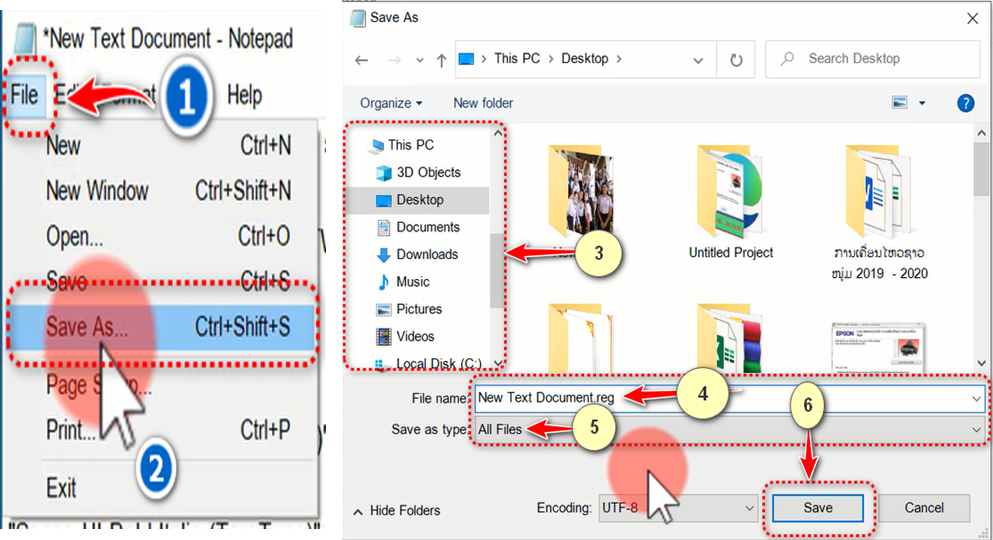
+ ວິທີ Save
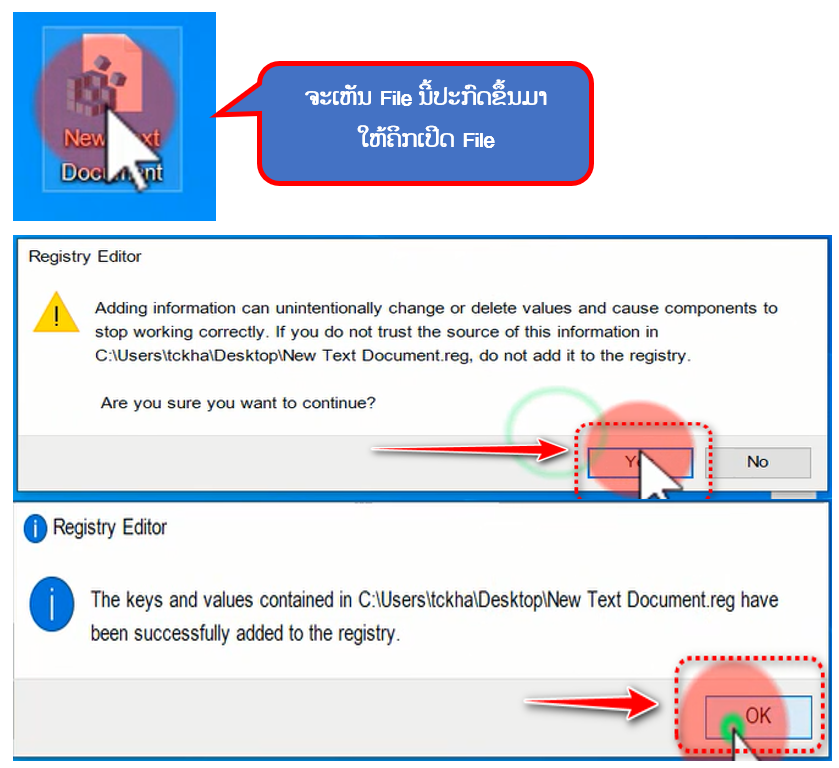
ຫຼັງຈາກໜັງຈາກນັ້ນໃຫ້ Restart computer ແລ້ວສຳເລັດ
ແຕ່ງໂດຍ: ອາຈານ ເພັດສະດາ ທະວີສັກ
ໂທ 020 55009007
ໜ່ວຍງານ MIS ສູນ ICT ພະແນກສຶກສາທິການ ແລະ ກິລາ ແຂວງ ບໍລິຄຳໄຊ